Tools and Services
Nimbuz provides a comprehensive set of tools and services to support your application infrastructure. Currently, our platform supports databases and management tools to enhance your development and production environments.
Supported Tools
Nimbuz currently supports the following tools:
- CloudBeaver - Database administration tool
- PostgreSQL - Relational database
- MySQL - Popular relational database
- MongoDB - NoSQL document database
- MSSQL - Microsoft SQL Server relational database
- N8n - Workflow automation and integration platform
- RabbitMQ - Message broker for handling asynchronous messaging
Accessing Tools
Tool Information
Each tool provides detailed information including:
- View Details: Brief introduction and tool overview
- Name: Unique identifier for the tool instance
- Status: Current operational status
- Host: URL to access the tool interface
- Port: Port number the tool is running on
Available Actions
For each installed tool, you can perform:
- View: Display detailed tool information and configuration
- Edit: Modify the tool's configuration and settings
- Delete: Permanently remove the tool and all associated data
CloudBeaver
CloudBeaver is a web-based database administration tool that provides an interface for managing your databases.
Installation Configuration
Name
- Enter a unique name for your CloudBeaver instance
- Use descriptive names for easy identification
- Follow your organization's naming conventions
Instance Type
- Select an appropriate instance type from the supported options
- Consider your expected usage and performance requirements
- Available options: medium.m ,large.m ,small.c ,medium.c ,large.c ,small.r ,medium.r ,large.r
Features
- Web-based database management interface
- Support for multiple database types
- User-friendly administration tools
- SQL query execution environment
Use Cases
- Database administration and management
- SQL query development and testing
- Database schema visualization
- Data browsing and editing
PostgreSQL Database
PostgreSQL is a powerful, open-source relational database management system.
Installation Configuration
Name
- Enter a unique name for your PostgreSQL instance
- Choose a descriptive name that identifies the database purpose
Root User Password
- Set a strong password for the root user account
- Root user has administrative access to the database
- Follow security best practices for password creation
Postgres User Password
- Set a password for the default PostgreSQL user
- This user is used for standard database operations
- Should be different from the root password
Persistence Size
- Specify the amount of persistent storage allocated to the database
- Value should be between 1 and 3 GB
- Consider your data storage requirements and growth projections
Instance Type
- Select an appropriate instance type from the supported options
- Consider your expected usage and performance requirements
- Available options: medium.m ,large.m ,small.c ,medium.c ,large.c ,small.r ,medium.r ,large.r
Features
- ACID compliance and reliability
- Advanced SQL features
- Extensible with custom functions and data types
- Strong consistency and data integrity
Management
- PostgreSQL databases can be viewed and managed through CloudBeaver
- Direct connection via database clients
- Command-line access for advanced administration
MySQL Database
MySQL is one of the world's most popular relational database management systems.
Installation Configuration
Name
- Choose a unique name for your MySQL tool instance
- Use clear, descriptive naming conventions
Root Password
- Set a secure root password for MySQL
- Root provides full administrative access to the database
- Essential for database management and security
Primary Persistence Size
- Specify the amount of persistent storage in GB
- Allocated for storing your database data
- Plan for current needs and future growth
Instance Type
- Choose appropriate instance type based on resource needs
- Consider CPU and memory requirements for your workload
- Balance performance needs with cost considerations
Custom Database
- Enter a name for a custom database to be created during initialization
- Optional: Can be created later if not specified during setup
- Useful for organizing application-specific data
Custom User
- Define a user who will have access to the custom database
- Provides restricted access compared to root user
- Follow principle of least privilege for security
Custom Password
- Set a password for the custom user specified above
- Should be different from root password
- Use strong password practices
Features
- High performance and reliability
- Wide platform support
- Extensive community and documentation
- ACID compliance
Management
- MySQL databases can be viewed and managed through CloudBeaver
- phpMyAdmin interface available for web-based management
- Command-line tools for advanced administration
MongoDB Database
MongoDB is a popular NoSQL document database designed for scalability and flexibility.
Installation Configuration
Name
- Enter a unique name for your MongoDB instance
- Choose names that reflect the database purpose
Root Password
- Set a password for the MongoDB root user
- Root user has administrative privileges
- Essential for cluster management and security
Replica Set Key
- Provide a shared secret for authenticating communication
- Used between members of the MongoDB replica set
- Critical for replica set security and operation
Persistence Size
- Specify the amount of persistent storage in GB
- Allocated to the MongoDB database
- Consider document storage requirements and indexing needs
Instance Type
- Choose instance type based on CPU, memory, and performance requirements
- MongoDB benefits from adequate RAM for working set
- Consider read/write patterns and concurrent connections
Features
- Document-oriented data model
- Horizontal scalability
- Flexible schema design
- Rich query language
Management
- MongoDB Compass for graphical interface
- Command-line tools for administration
- RESTful APIs for programmatic access
MSSQL Database
MSSQL (Microsoft SQL Server) is a relational database management system designed for enterprise-level data storage, security, and performance.
Installation Configuration
Name
- Enter a unique name for your MongoDB instance
- Choose names that reflect the database purpose
SA Password
- Set a strong password for the system administrator (SA) account
- The SA account has full administrative privileges
- Required for database management and access
Persistence Size
- Specify the amount of persistent storage in GB
- Allocated for database files and logs
- Consider data growth and backup requirements
Instance Type
- Choose instance type based on CPU, memory, and performance requirements
- MSSQL benefits from sufficient memory for query performance
- Consider workload type and concurrent users
Features
- Relational database with structured schema
- Advanced querying using T-SQL
- High availability and disaster recovery support
- Strong security and access control
Management
- SQL Server Management Studio (SSMS) for graphical interface
- Command-line tools for administration
- Integration with monitoring and backup tools
N8n
N8n is a workflow automation tool that enables you to connect different services and automate processes using visual workflows.
Installation Configuration
Name
- Enter a unique name for your N8N instance
- Used to identify your workflow automation service
- Choose a meaningful name based on usage
N8n Workflow Instance Type
- Select the instance type for running N8N workflows
- Determines CPU and memory allocation
- Example: medium.m (CPU: 0.5000, Memory: 4.0000)
- Impacts workflow execution performance
N8n PostgreSQL Instance Type
- Select the instance type for the PostgreSQL database used by N8N
- Stores workflow data, execution logs, and credentials
- Should be chosen based on expected workload
Postgres Persistence Size
- Specify the storage size (in GB) for PostgreSQL
- Used for storing workflows, logs, and metadata
- Increase based on data retention and usage
Features
- Visual workflow automation interface
- Integration with multiple external services
- Event-based and scheduled workflow execution
- Supports custom nodes and extensions
Management
- Web-based UI for workflow creation and monitoring
- Execution logs for tracking workflow runs
- Ability to start, stop, and manage workflows
- Supports API access for automation and integrations
Seeing "Access blocked: … has not completed the Google verification process" when signing in with Google from n8n? That message comes from your own Google Cloud OAuth app, not from Nimbuz. See n8n Google Credentials: Fixing "Access blocked".
RabbitMQ
RabbitMQ is a message broker that enables asynchronous communication between applications by sending and receiving messages through queues.
Installation Configuration
Name
- Enter a unique name for your RabbitMQ instance
- Used to identify the message broker within your project
- Choose a meaningful and descriptive name
RabbitMQ User
- Specify the username for accessing RabbitMQ
- Default user is typically "root"
- Used for authentication and management access
RabbitMQ Password
- Set a secure password for the RabbitMQ user
- Required for login and communication with the broker
- Ensure strong credentials for security
RabbitMQ Erlang Cookie
- Provide a secret key used for node authentication
- Required for clustering and communication between RabbitMQ nodes
- Must be the same across all nodes in a cluster
Persistence Size (Gi)
- Specify the storage size (in GB) for persistent data
- Used to store messages, queues, and broker data
- Increase based on message volume and retention needs
Instance Type
- Select instance type based on CPU and memory requirements
- Example: medium.m (CPU: 0.5000, Memory: 4.0000)
- Impacts message processing performance and throughput
Features
- Reliable message queuing and delivery
- Supports multiple messaging protocols
- Asynchronous communication between services
- High availability and clustering support
Management
- Web-based RabbitMQ Management UI
- Monitor queues, exchanges, and message flow
- Manage users, permissions, and configurations
- CLI and API support for automation
Tools Networking Overview
The Tools page provides networking details for each deployed tool, including how it can be accessed within and outside the environment.
Host (Endpoint)
- Displays the endpoint used to access the tool
- Each tool has a unique host URL
- Can include:
- Public Endpoint: Accessible over the internet
- Private Endpoint: Accessible only within the internal network
Port
- Specifies the port used to connect to the tool
- Port values vary depending on the tool type and configuration
- Public and private ports may differ
- Examples include common ports used by services (e.g., HTTP, HTTPS, database ports)
Public Access
- Allows access to the tool from outside the network
- Typically uses secure endpoints and ports
- Suitable for web-based tools and external integrations
Private Access
- Restricts access to within the internal environment
- Used for secure communication between services
- Not exposed to the public internet
Notes
- Each tool may have different networking configurations
- Always refer to the Tools page to get the exact host and port details
- Ensure correct endpoint and port are used when connecting to the tool
How to Use
The How to Use tab provides a centralized reference for connecting to each deployed tool. It includes the connection type, example code snippets.
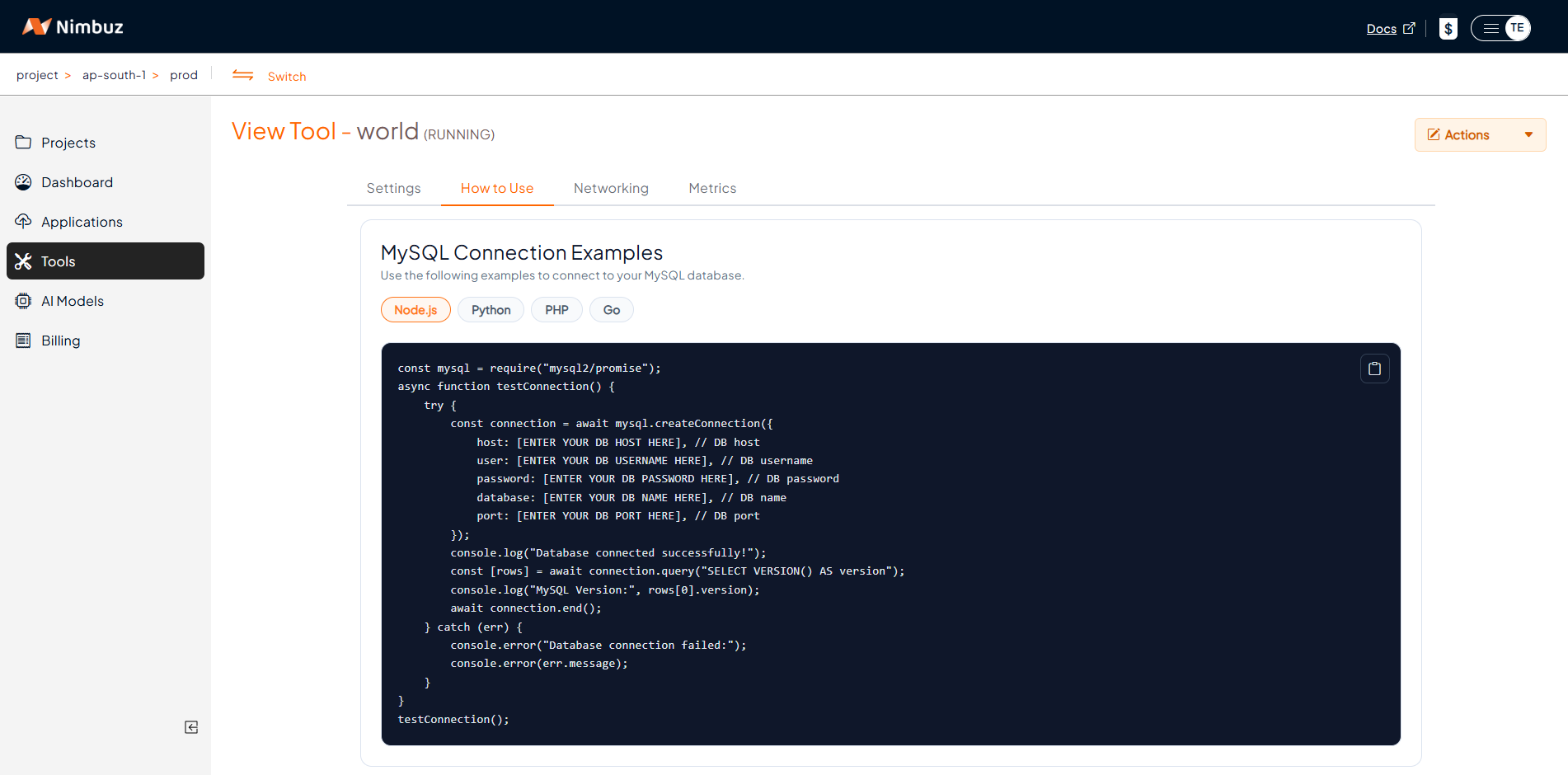
Connection examples
Use the sample code in the How to Use tab to connect your application to the deployed tool. The examples use environment variables for host, port, user, password, and database values.
Environment Variables for Database Connection:
- host → Database server address (e.g., localhost or an IP address)
- port → DB port
- user → Database username
- password → Database password
- database → Database name to connect
Tool Metrics
The Metrics tab provides real-time and historical insights into the performance and resource usage of the deployed tool.
Duration and Interval
- Duration: Defines the time range for metrics visualization
- Interval: Specifies how frequently data points are collected
- Helps analyze trends over a selected period
Resource Overview
Displays key resource usage and limits:
- CPU Usage: Current CPU consumption of the tool (in mCPU)
- RAM Usage: Current memory usage (in MiB)
- CPU Limit: Maximum CPU allocated to the tool
- RAM Limit: Maximum memory allocated
- CPU Throttle: Indicates if CPU usage is being restricted
- Instance Type: Shows the selected resource configuration (e.g., medium.m)
CPU Usage
- Displays CPU usage over time
- Helps monitor processing load
- Compares current usage against defined limits
RAM Usage
- Displays memory usage over time
- Helps identify memory consumption patterns
- Ensures usage stays within allocated limits
CPU Throttle
- Shows if CPU throttling is occurring
- Indicates performance constraints due to limits
- Useful for identifying resource bottlenecks
Benefits
- Monitor real-time system performance
- Identify resource bottlenecks early
- Optimize CPU and memory allocation
- Improve application stability and efficiency
Database Management with CloudBeaver
Accessing Databases
PostgreSQL and MySQL databases can be viewed and managed through the CloudBeaver URL provided after installation.
Benefits of CloudBeaver Integration
- Unified interface for multiple database types
- Web-based access from anywhere
- No need for separate database client installations
- Consistent user experience across database platforms
CloudBeaver Features
- SQL Editor: Write and execute SQL queries
- Data Browser: View and edit table data
- Schema Management: Create and modify database schemas
- User Management: Manage database users and permissions
- Export/Import: Data migration and backup capabilities
Best Practices
Instance Sizing
- Development: Use smaller instances (nano, micro) for development and testing
- Staging: Use medium instances to simulate production loads
- Production: Use larger instances (large, extra large) for production workloads
Security
- Use strong, unique passwords for all database users
- Implement network security groups to control access
- Regularly update and patch database systems
- Use different credentials for different environments
Storage Planning
- Plan storage capacity based on data growth projections
- Consider backup storage requirements
- Monitor storage usage and plan for scaling
- Implement data retention policies
High Availability
- Use multiple replicas for critical databases
- Distribute replicas across availability zones
- Implement proper backup and recovery procedures
- Test disaster recovery processes regularly
Monitoring and Maintenance
Performance Monitoring
- Monitor database performance metrics
- Track query performance and optimization opportunities
- Monitor resource utilization (CPU, memory, disk)
- Set up alerts for performance thresholds
Backup and Recovery
- Implement automated backup schedules
- Test backup restoration procedures
- Maintain backup retention policies
- Consider cross-region backup replication
Maintenance Tasks
- Regular database optimization and maintenance
- Index maintenance and optimization
- Log rotation and cleanup
- Security updates and patches
Troubleshooting
Common Issues
Connection Problems
- Verify network connectivity and security groups
- Check database service status
- Validate connection credentials
- Review firewall and port configurations
Performance Issues
- Monitor resource utilization
- Analyze slow query logs
- Review indexing strategies
- Consider instance sizing adjustments
Storage Issues
- Monitor storage utilization
- Plan for storage expansion
- Review data retention policies
- Consider archiving old data
Integration with Applications
Connection Configuration
- Use environment variables for database connection strings
- Implement connection pooling for better performance
- Use appropriate database drivers for your application
- Configure proper timeout and retry settings
Security Best Practices
- Use SSL/TLS for database connections
- Implement proper authentication and authorization
- Use connection strings with appropriate privileges
- Regularly rotate database credentials
Next Steps
With your tools and services configured:
- Monitor your infrastructure - Track performance and usage
- Manage resources effectively - Optimize costs and performance
- Implement best practices - Follow recommended procedures
- Set up team access - Configure user permissions
Support
Need help with tools and services?
- Email: tools@nimbuz.cloud
- Live Chat: Available 24/7 in your dashboard
- Documentation: Comprehensive database guides
- Video Tutorials: Database setup and management tutorials
- Database Support: Specialized database assistance available