n8n Google Credentials: Fixing "Access blocked"
When you connect an n8n instance running on Nimbuz to Google (Sheets, Drive, Gmail, Calendar…) and click Sign in with Google, you may see:
Access blocked: <your-app-or-domain> has not completed the Google verification process
Error 400 / Error 403: access_denied

The message is produced by Google, for the OAuth app you created in your own Google Cloud project. The name in the message (for example nimbuz.tech or your n8n hostname) is simply the App name / authorized domain you entered on that project's OAuth consent screen — so it looks like Nimbuz is blocked, but Nimbuz never talks to Google on your behalf. Only the owner of the Google Cloud project can fix it.
Why it happens
Every new Google Cloud OAuth app starts as External and in Testing mode. In that state Google only lets in Google accounts listed as Test users. Anyone else gets "Access blocked". The same screen also appears when the app was published but uses sensitive scopes (Drive, Gmail) without completing Google's verification.
A related Error 400: redirect_uri_mismatch means the redirect URL in Google Cloud does not exactly match the one n8n shows (see Step 4).
Pick the right fix
| Option A — OAuth2 | Option B — Service Account + Key | |
|---|---|---|
| Use when | The workflow acts on other people's Google accounts / files (your customers or teammates sign in with their own Google account) | The workflow only touches your own (or your company's) Sheets/Drive files |
| Who signs in | Each end user, through Google's consent screen | Nobody — n8n authenticates with a JSON key |
| Google verification | Needed before going public with sensitive scopes | Not needed — no consent screen |
| Token expiry | 7 days while in Testing; long-lived once published | Never expires (rotate the key yourself) |
| Gmail | Works for any account | Only Google Workspace with domain-wide delegation |
| Setup effort | Higher | Lower |
If you are automating your own spreadsheets or Drive folders, use Option B (Service Account). It avoids the consent screen entirely, so the "Access blocked" error cannot happen.
Option A — OAuth2 (accessing other users' files)
A1. Create or select a Google Cloud project
- Open Google Cloud Console.
- Use the project picker at the top to create a new project (or select an existing one).
A2. Enable the APIs you need
- Go to APIs & Services → Library.
- Search for and Enable each API the workflow uses — e.g. Google Sheets API, Google Drive API, Gmail API.

A3. Configure the OAuth consent screen
- Go to Google Auth Platform (formerly APIs & Services → OAuth consent screen) and click Get started.
- Branding: enter an App name and User support email. This name is what users see in the consent screen and in the "Access blocked" message.
- Audience:
- Internal — only users in your Google Workspace organization. No verification required. Choose this if everyone who signs in belongs to your Workspace.
- External — any Google account. The app starts in Testing.
- While in Testing, scroll to Test users → Add users and add every Google account that will sign in from n8n (up to 100).

Adding the signing-in account as a test user is the quickest fix for the "Access blocked" error. In Testing mode, refresh tokens expire after 7 days, so the n8n credential must be reconnected weekly until the app is published.
A4. Create the OAuth client ID
-
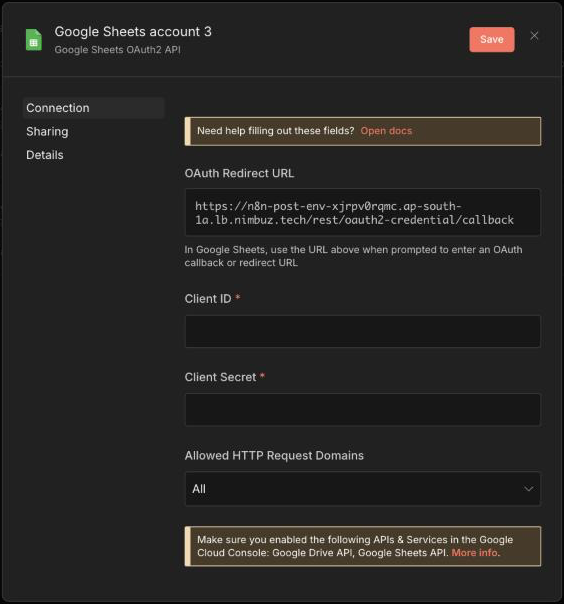
In n8n, open Credentials → Create credential, choose e.g. Google Sheets OAuth2 API, and copy the OAuth Redirect URL shown. It looks like:
https://<your-n8n-host>/rest/oauth2-credential/callback -
In Google Cloud go to Google Auth Platform → Clients → Create client.
-
Application type: Web application.
-
Under Authorized redirect URIs, click Add URI and paste the n8n URL exactly (same
https, host and path, no trailing slash). -
Click Create and copy the Client ID and Client secret.

A5. Connect the credential in n8n
- Back in the n8n credential, paste the Client ID and Client Secret.
- Click Sign in with Google, choose an account that is listed as a test user, and approve the requested permissions.
- The credential shows Account connected.
A6. Go to production (only for public / other people's accounts)
When users outside your test list need to sign in:
- Go to Google Auth Platform → Audience and click Publish app.
- For sensitive or restricted scopes (Drive, Gmail, etc.) Google requires verification. Prepare:
- A verified domain you own (verified in Google Search Console) added under Branding → Authorized domains
- A public homepage and privacy policy on that domain
- A justification for each scope and a short demo video of the OAuth flow
- For restricted scopes (e.g. full Gmail/Drive), a third-party security assessment may be required
- Submit under Google Auth Platform → Verification Center and wait for Google's review.

Until verification is approved, users of a published app see "Google hasn't verified this app" and the app is capped at 100 users. Request the narrowest scopes possible — for example drive.file instead of full drive — to simplify verification.
Option B — Service Account + Key (your own files)
A service account is a robot Google identity owned by your project. You share your files with it, and n8n uses its JSON key — no consent screen, no verification.
B1. Enable the APIs
Same as A1 and A2: create/select a project and enable the Sheets / Drive APIs.
B2. Create the service account
- Go to IAM & Admin → Service Accounts → Create service account.
- Enter a name (e.g.
n8n-automation) and click Create and continue. - Project roles are not required for Sheets/Drive access — click Done.
- Copy the service account email, e.g.
n8n-automation@my-project.iam.gserviceaccount.com.

B3. Create a JSON key
- Open the service account → Keys tab → Add key → Create new key.
- Choose JSON and click Create. The key file downloads once — store it securely.

If key creation is disabled, your organization has the policy iam.disableServiceAccountKeyCreation enforced. Ask your Google Cloud admin to allow it for this project.
B4. Share your files with the service account
The service account cannot see anything until you share it.
- Open the Google Sheet (or Drive folder) → Share.
- Paste the service account email, give it Editor (or Viewer for read-only) access, uncheck Notify people, and click Share.

Share a whole Drive folder to give access to every file inside it, including new ones.
B5. Create the credential in n8n
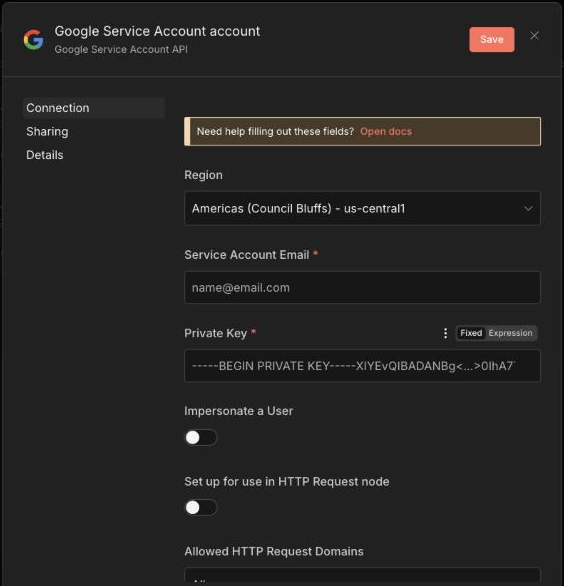
- In n8n, go to Credentials → Create credential → Google Service Account API.
- Region: leave the default unless your Google project requires a specific region.
- Service Account Email: the
client_emailvalue from the JSON key. - Private Key: the full
private_keyvalue from the JSON key, including the-----BEGIN PRIVATE KEY-----and-----END PRIVATE KEY-----lines. - Leave Impersonate a User off (only needed for Google Workspace domain-wide delegation, e.g. Gmail).
- Save — n8n tests the connection.
- In your Google Sheets / Drive node, set Authentication to Service Account and select this credential.
Anyone with the JSON key can act as the service account. Never commit it to Git or paste it in chat. Delete unused keys and rotate keys periodically from the Keys tab.
Troubleshooting
| Symptom | Cause | Fix |
|---|---|---|
| Access blocked: … has not completed the Google verification process | App is External + Testing and the account is not a test user | Add the account under Audience → Test users, use Internal, or switch to a Service Account |
| Error 400: redirect_uri_mismatch | Redirect URI in Google Cloud ≠ n8n's OAuth Redirect URL | Copy the URL from n8n and paste it exactly into the OAuth client |
| OAuth credential stops working after a week | Refresh tokens expire after 7 days in Testing mode | Reconnect, publish the app, or use a Service Account |
| Google hasn't verified this app | App is published but not verified | Complete verification, or use a Service Account for your own files |
| Service account gets 404 / The caller does not have permission | File not shared with the service account, or API not enabled | Share the file with the service account email; enable the API |
Need help?
If the n8n instance itself is unreachable or unhealthy on Nimbuz, contact Nimbuz Support. Google Cloud project, consent screen and verification settings are managed in your own Google account.